
Platform Pulse: Spot repeat issues, run service from your phone, and more
Platform Pulse is a regular rundown of what’s new at OneVision, from ProVision features to updates in how we support integrators and their clients.
Here's what's new…
Spot recurring issues from within Conversations
Previously: Recognizing a repeat problem, and finding how it was last resolved, meant sifting through Conversation history.
Moving forward: A notice beneath the AI summary highlights detected recurring issues, links to previous Conversations, and shows the last recorded fix when available.
Note: The notice appears when a summary is generated or updated and a recurring issue is detected. It won't backfill across every past Conversation.
Why it matters: A repeat call stops being a fresh investigation. Whoever picks it up starts from the fix that worked last time, not from scratch.

Work more easily from your phone
Previously: Desktop-style lists were difficult to scan on a phone.
Moving forward: Browse Conversations, Sites, and Clients in phone-friendly cards. Swipe eligible conversations to snooze or solve them, with Undo available, and tap viewer avatars in the conversation header to see viewing history.
Why it matters: The 8pm text from a client doesn't have to wait until you're back at a laptop. Triage it, snooze it, or solve it from wherever you are.

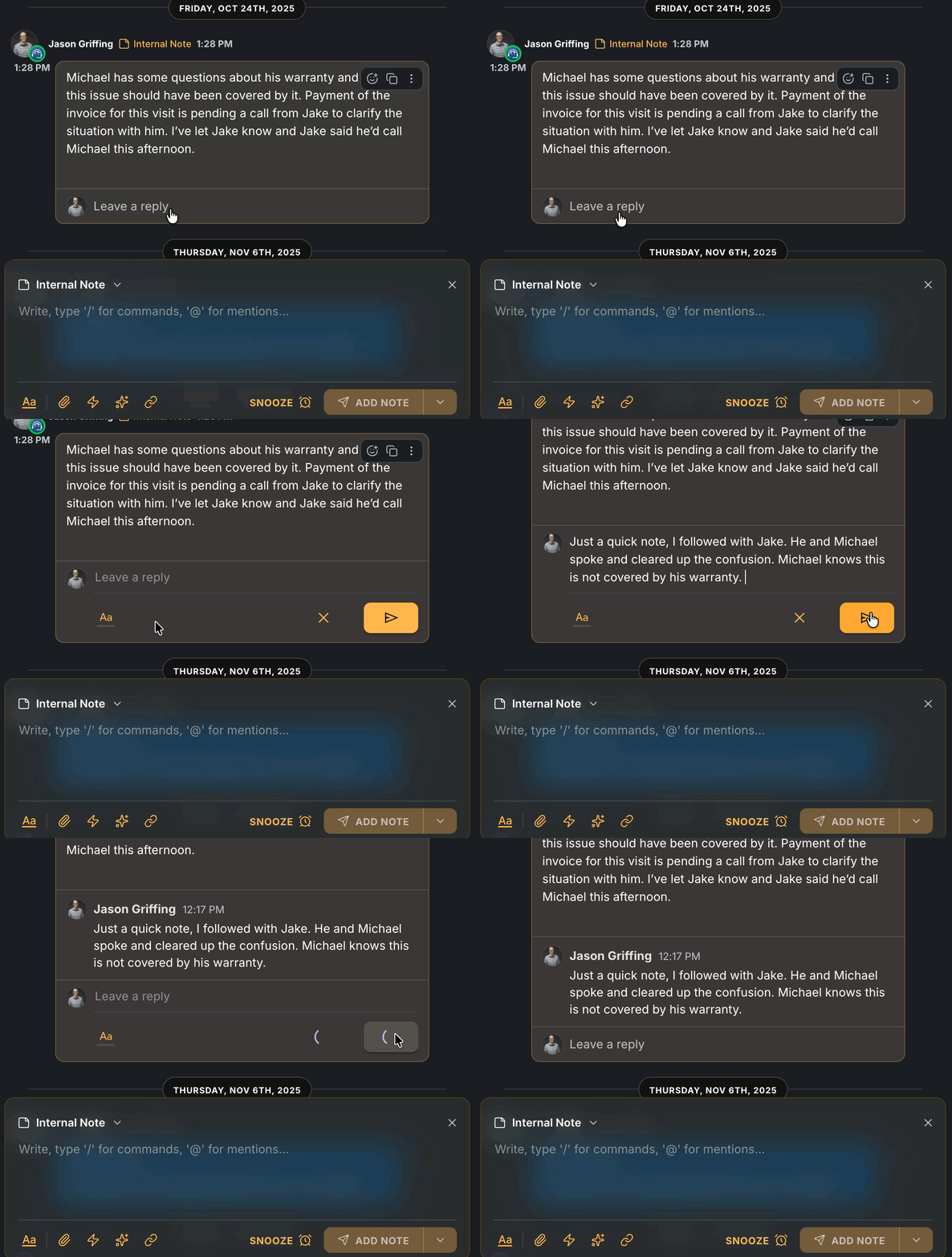
Reply to internal notes
Previously: Internal discussions within a Conversation ended up scattered across various internal notes, making it hard to track key information about how the issue was being handled.
Moving forward: Reply directly beneath an internal note to keep the discussion together. Optionally, internal replies can also be marked as a ‘resolution’, providing a clear indicator of how exactly the issue was solved.
Why it matters: How an issue got fixed stops living in one tech's head. The next person who sees it finds the answer in one place.
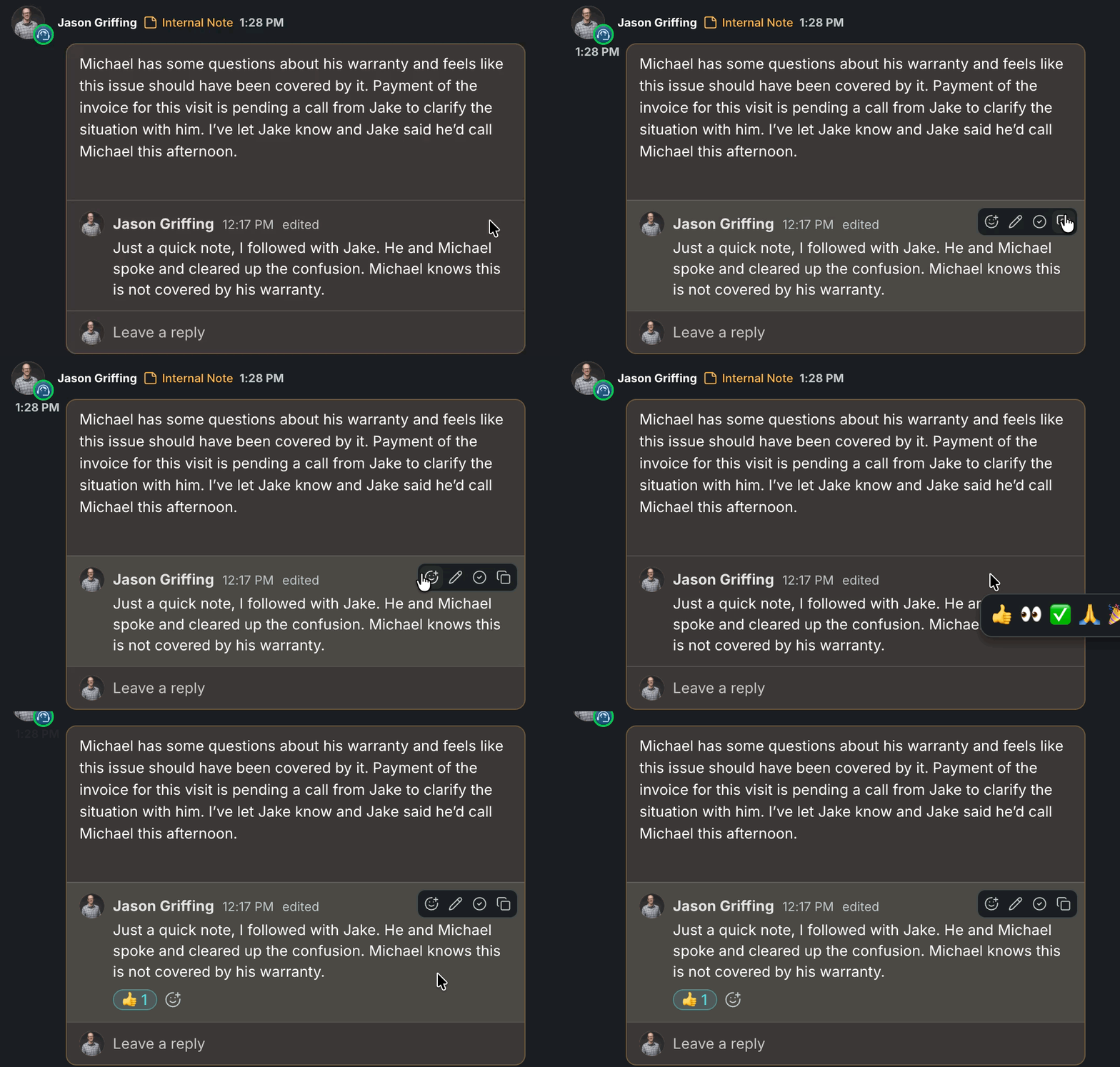
We've also included emoji reactions, giving you an easy way to acknowledge messages.
Jump anywhere with Quick actions
Previously: Quick actions did not include the ability to navigate to pages, views, and settings.
Moving forward: Open Quick actions with ⌘K and start typing to find available destinations. For example, search for a favorite view, type “hours” to find Business Hours, or type “settings” to browse available settings pages. Hotkeys FTW!
Why it matters: Less clicking through menus, more time on the issue in front of you.

Where to go from here
Already using ProVision? These updates are live in your account now. To see a full list of every change we've shipped, visit the changelog.
Have ideas or feedback? We'd love to hear them. Reach out to your OneVision contact and let us know what's on your mind.
Building out your service department? Request a demo to see how ProVision and OneVision's 24/7 support work together.
~ The OneVision Team


